
Theme Installation & Setup

There are two methods to upload a theme to a WordPress site: via the Admin Panel and through FTP. The most recommended approach is using the Admin Panel, as it’s simpler and more user-friendly. However, in some cases, file size limitations may prevent direct uploads. For this reason, this guide covers both methods.

Note: Unzip the downloaded Carrapackage from ThemeForest, locate the “Carrafiles” folder, and use the Carra.zip file inside it for installation via WordPress or FTP.

Method 1: Installing the Theme via WordPress

Step 1: Log in to your WordPress Admin Panel.

Step 2: Navigate to Appearance > Themes

Step 3: Click the Add New button, then select Upload Theme.

Step 4: Click Choose File, select Carra.zip file, and hit Install Now.

Step 5: Once the installation is complete, click Activate, and you will be redirected to the Themes page with Carra activated.

Theme is now successfully installed and ready to use!

Method 2: Installing the Theme via FTP

  1. Download & Extract – Download the theme .zip file and extract it on your computer. You should see a folder containing the theme files.
  2. Connect to Your Server – Use an FTP client (like FileZilla) to connect to your WordPress site.
  3. Navigate to the Themes Directory – Go to /wp-content/themes/ in your WordPress installation directory.
  4. Upload the Theme – Upload the extracted theme folder to the themes directory.
  5. Activate the Theme – Log in to your WordPress Admin Panel, go to Appearance → Themes, find the uploaded theme, and click Activate.

Theme is now successfully installed via FTP!


Plugin Installation & Configuration

After activating Carra, it will redirect to Theme Welcome page.
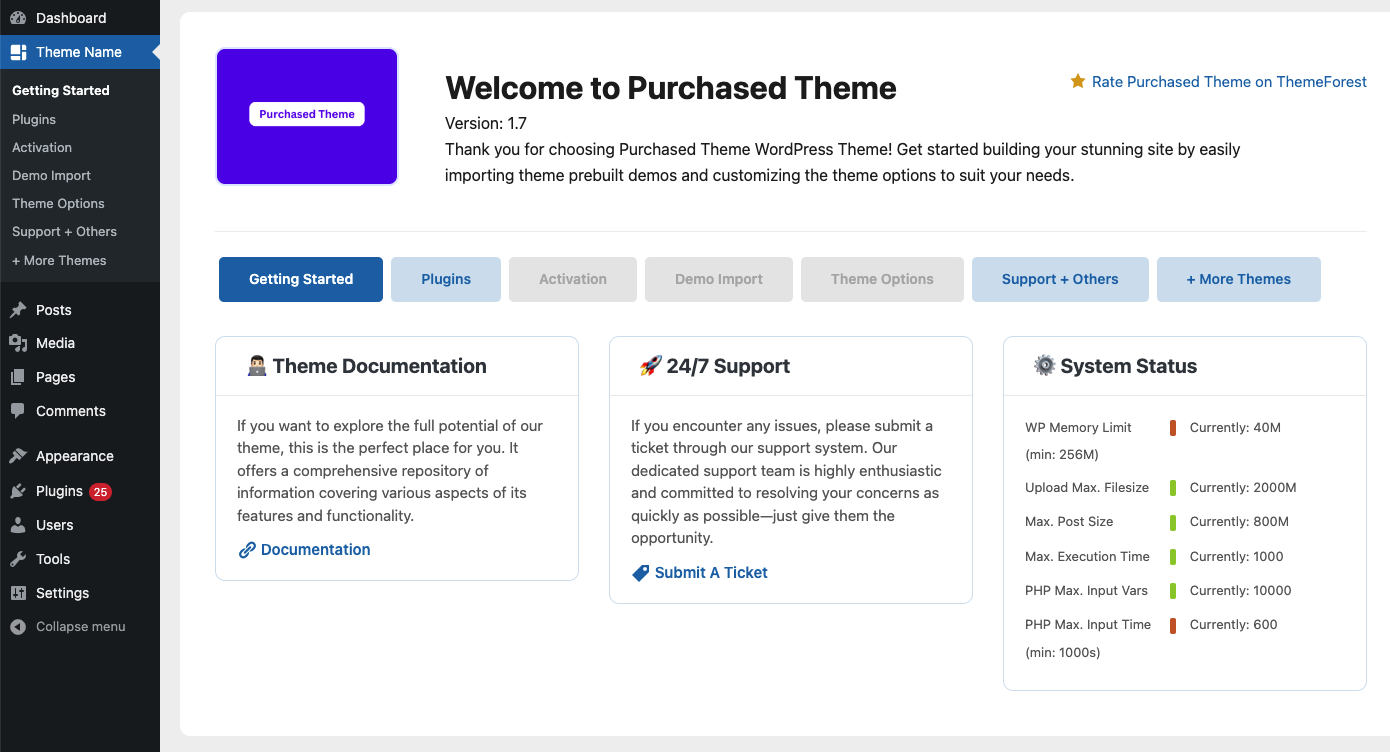
Next, click the “Plugins” button, which will take you to the Install Required & Recommended Plugins page.

Click “Activate All Plugins”, and it will automatically install and activate the required plugins.

The necessary plugins to ensure the proper functionality of Carra theme:

Required Plugins:

  • Carra Toolkit – Core plugin for Carra-specific features and functionalities.
  • Elementor Page Builder – Drag-and-drop website builder for easy customization.
  • Advanced Custom Fields PRO – Adds custom fields and enhances theme functionality.

Recommended Plugins:

  • Contact Form 7 – Enables easy form creation and management.
  • WooCommerce – Adds eCommerce functionality for online stores.
  • Envy Demo Importer – Used for importing demo content.
  • Give Donation – Used to add donation.

The required plugins are crucial for the proper functioning of the Carra theme. Without them, the core features of the theme will not work as expected.

The recommended plugins provide additional functionality to enhance your site, but they are optional and can be removed if not necessary.

Import Demo Content

  • From the Admin Menu, navigate to Appearance → Import Demo Data.
  • On this page, click the Import button to install any demo. The process may take some time.
  • After the demo data is imported, update your permalink settings:
    • Go to Settings → Permalinks
    • Click the Save Changes button
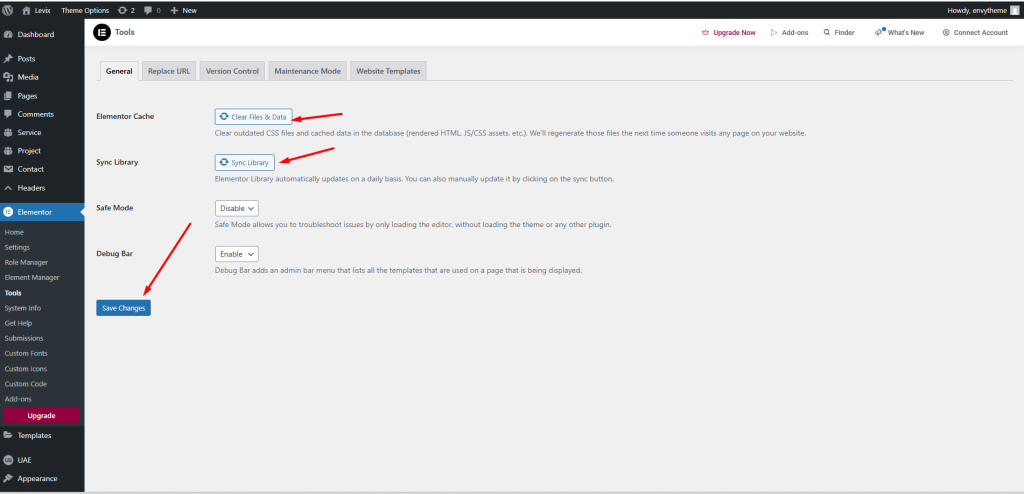
  • Update Elementor Cache
    • Go to Elementor → Tools.
    • Click Clear Files & Data.
    • Click Sync Library.